
The Quick Search facility quickly finds fonts that match keywords that you enter into the search field marked with a magnifying glass that appears at the upper-right of the top pane.

Enter a keyword into the Search Fonts field. As you enter characters, FontAgent automatically searches font metadata that matches the characters you have entered. As you type, the Image or Table View appearing below the Search Fonts field displays the fonts that match your string.
Your search applies to the current selection in the Sets Sidebar. To search in specific sets, select them in the sidebar before you start.
FontAgent searches the following font characteristics for matching fonts.
- Font names
- Font family
- Font style
- Font weight
- Foundry names
- Copyrights
- Trademarks
- Comments
- Tags
To use the Smart Search facility to specify multiple search criteria, click the magnifying glass in the Search field.
In the search below, the search term surf returns fonts whose names and families contain the term, as well as fonts that contain comments or keywords (tags) containing surf.
Active Search Indicator
When an active search is filtering the fonts being displayed, the Search field turns yellow to alert you.
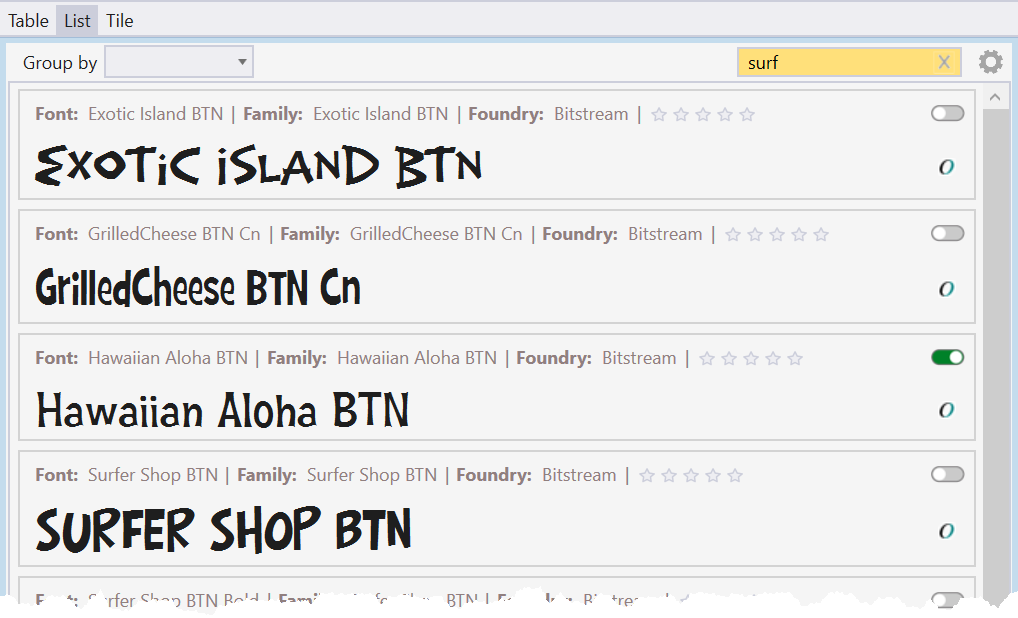
To cancel an active search, click the X button on the right of the Search field.