
FontAgent® lets you search for fonts by their names, properties and metadata using its Smart Search facility.
What is a Smart Search?
Smart Search lets you find fonts in your FontAgent database that match one or more rules that you specify.
To start a Smart Search, click the gear icon to the right of the Search field and FontAgent displays the Smart Search dialog.

Specifying Smart Search Criteria
To specify the terms of your Smart Search, follow these steps:
To group your search results By Family or By Foundry, click the corresponding checkbox at the top of the search dialog. Click Save and FontAgent will display the results of your Smart Search in the Table or List View.
- If you have more than one rule for your search, select whether you want the fonts in the set to match any or all of your rules.
- Enter a rule by using the pull-down menus and text fields to specify an attribute, operator and value.
- Click the plus icon to add a rule.
- Click the x icon to the left of a rule to delete it from the Smart Search.
You can search any combination of the following fields in your Smart Search.
- Font name
- Font family name
- Foundry name
- Font style
- Font weight
- File format type
- Activation status
- Copyright
- Trademark
- Rating (1 to 5 stars)
- Description (by font creator)
- Tags
- Comments (made by you)
- Has Duplicates
Click the View Matching Fonts button to see a list of fonts that match the Smart Set criteria you have specified.
Saving Criteria as a Named Smart Set
To save the Smart Set definition to your FontAgent catalog, enter a Smart Set name at the top of the dialog and click the OK button at the bottom of the dialog.
Editing a Smart Set
To make changes to an existing Smart Set, right-click the set’s name in the Sets Sidebar and select the Edit command. FontAgent displays the Smart Set dialog so you can modify the set’s name and criteria. To save your change, click OK.
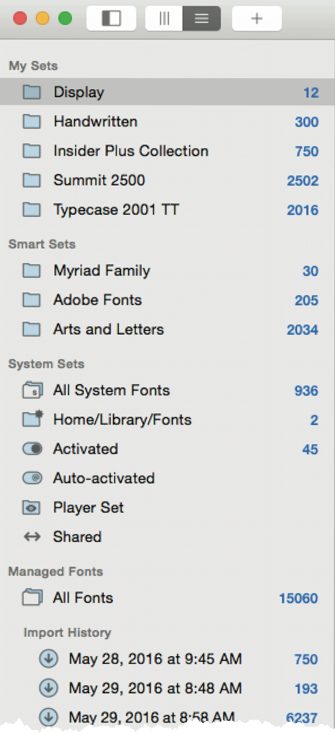
Renaming a Smart Set
To rename an existing Smart Set, double click the set’s name in the Sets Sidebar, then enter the new name and press Enter.