The Tile View appears in the FontAgent’s top pane and displays currently selected fonts in a grid of tiles that show:
- Sample font glyphs in their native typefaces
- Font names
- Icons indicating font-file formats including OpenType, TrueType, PostScript Type 1, etc.
- Switches for activating and deactivating the fonts
Displaying the Tile View
To display the Tile View, click the Tile tab above the top pane in FontAgent or type Ctrl-3.
FontAgent then displays a grid of tiles in the top pane of its main window.

Preview Fonts in a Set
To preview a set of fonts easily, just select a set in the Sets Sidebar on the left and the Tile View displays large previews of the fonts in the set.
Compare Styles in a Font Family
The Tile View is also handy in displaying the various styles contained in a font family. To do so, either select the font family or use the Search field to enter the family name.
Activate and Deactivate Fonts
Use the sliders in the upper-right of each font tile to activate and deactivate the font. A green slider indicates the font is activated and a grey slider indicates it is deactivated.
Sync Fonts with Font Viewers
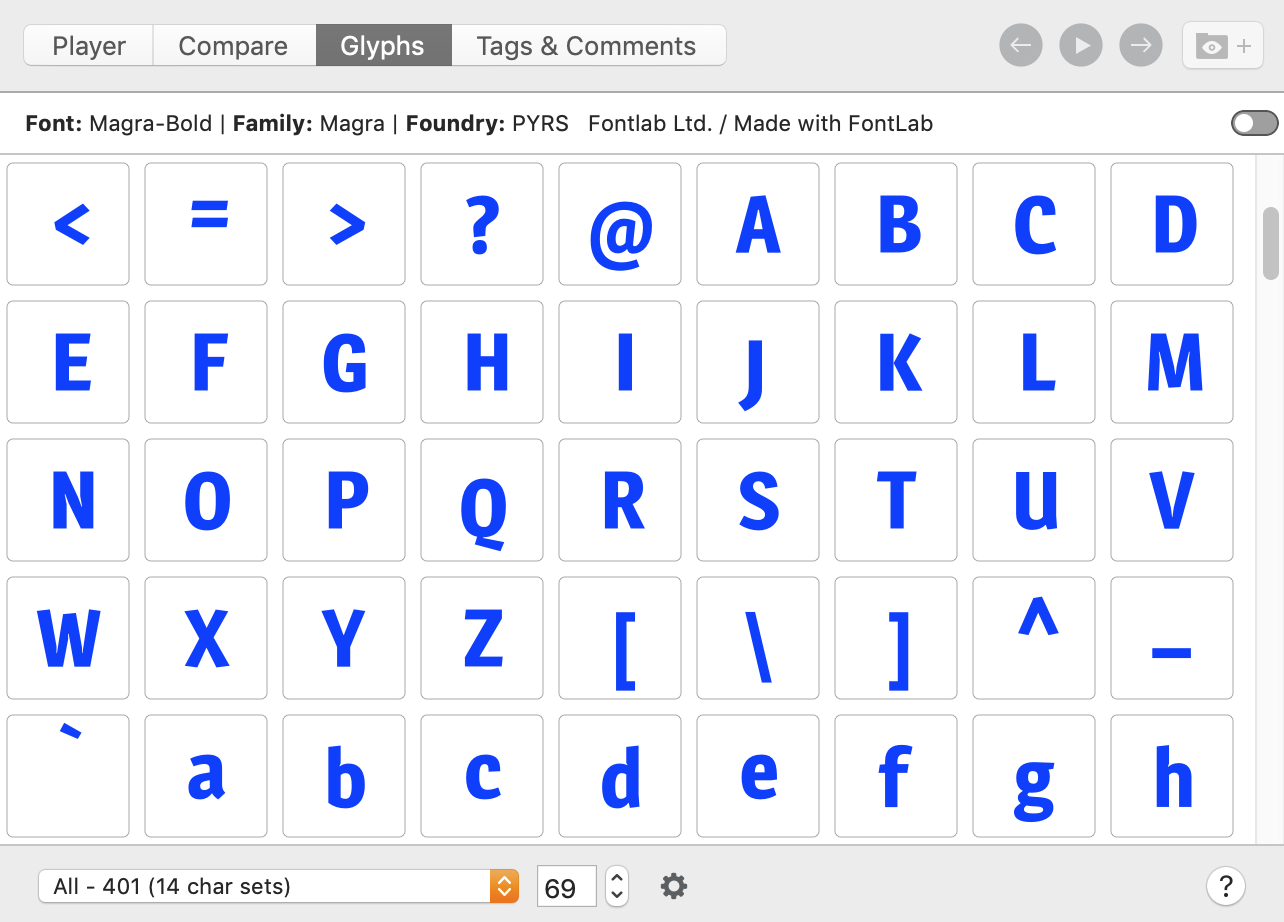
When you select a font in the Tile View, the Player, Compare and Glyphs viewers display that font in the bottom pane.